
Deep inside AlterCPA Pro there’s an excellent traffic filtering system and smart split tests. Add convenient domain parking to the mix and you get a great recipe for quality cloaking.
Short summary
You’re in for a detailed article on the core method of cloaking through AlterCPA Pro. Here’s the gist of the process:
- Drop white sites into the same offer or a separate one. Sites are added via “simple archive”.
- Create flows pointing to the white and black sites.
- Park a new domain.
- Create a split test and add the flows you made into it.
- For the black flow, pick a country, set the probability to 100, and check the bot-filtering boxes.
- Select the parked domain and set the link mode to “Direct link”.
- If you want to pour traffic straight onto the homepage, attach the split to the domain.
- Before starting any of this, it’s worth setting up your site storage.
If you’ve worked with AlterCPA before, this guide alone will be enough. For everyone else, we’ll go through the details of each point below.
Preparing white sites
In this method, white sites live in the same storage as the black ones. It’s best to drop them all into some neutral-sounding folder, like static or assets. That way, using the base tag will look completely normal.
Adding sites to an existing offer
White sites can be placed in the same offer as the black ones. The upside of this approach: any leads from this site go through processing and can get approved. The downside: you can clutter the offer with extra sites.
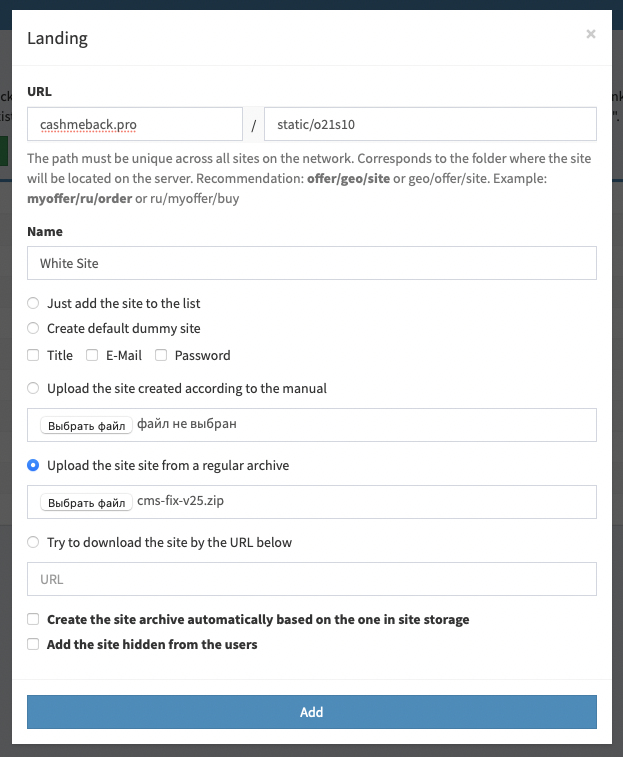
Algorithm for adding a site:
- Prepare a site archive on your computer. The archive format is ZIP. The
index.phpfile must sit in the root of the archive, not inside a subfolder. - Go to “Management – Offers”, find the offer you need, and open “Sites”.
- Click the green “Landing” button to add a site.
- Enter the path and name as instructed.
- Choose “Upload site from a regular archive” and select the archive from step 1.
- Click “Add” and start using the site.
You can learn the finer points of creating sites in the sites guide for AlterCPA Pro.
Creating white offers
Sometimes it’s worth setting up separate offers – a kind of dedicated storage for white sites. With separate offers, you can group sites by topic, use them in splits alongside different offers, and keep your black offers clean and tidy.
But the biggest upside is that white offers can be made private and opened only to a limited circle of users or your internal arbitrage teams.
The minimum recipe for creating a white offer:
- Go to the “Management – Offers” section and add a new offer using the form above the table.
- In the settings, set the offer’s privacy and specify the user whitelist.
- You won’t need to set up payouts or pricing for the white offer.
- It’s a good idea to create a dump company that all leads left on white sites will flow into.
- Add sites following the instructions from the previous section.
Setting up the split
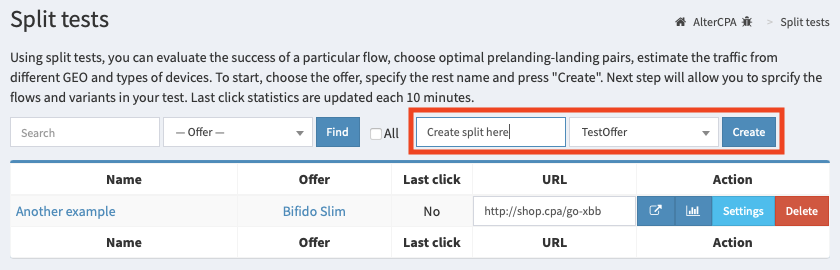
Split test work happens in the “Flows – Split tests” section. Go there and create your first split using the form above the table. Pick your black offer as the main offer.
Preparing flows
Split tests are made up of flows. Flows are created in the “Flows – Flows by offer” section or inside “Offers”. Create one flow for each test variant – white and black. Flows can be reused across different tests.
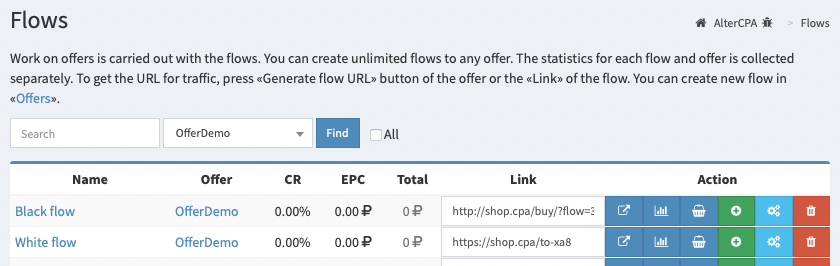
In the flow settings, pick the landing pages and pre-landers you need. Enter your Facebook pixel ID or whatever other tracking parameters you need. There’s no need to add UTM tags with a subid.
Basic settings
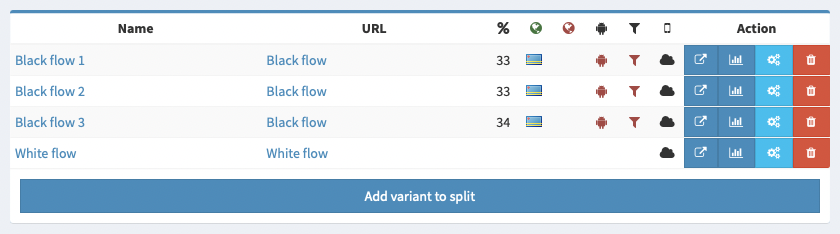
Create a split in the “Flows – Split tests” section and add your flows to it. You add a flow by clicking the “Add variant to split” button.
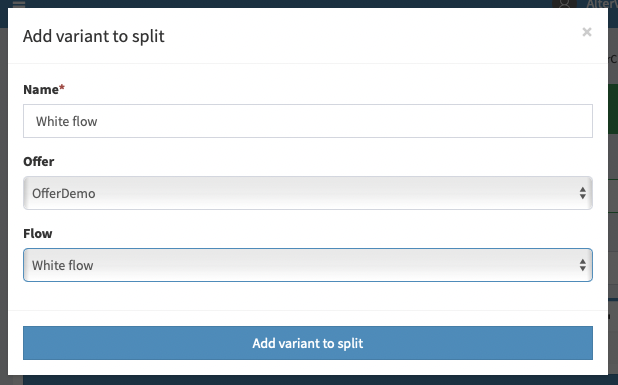
For the black variant, set the following:
- Probability: 100
- Countries: the list of geos you need
- Check the boxes for Exclude bots by User-Agent, Exclude bots by browser language, and Exclude bots by filtering blacklists
For the white variant, leave the default settings. Important! Don’t add your target countries to the exclusions on the white variant, or bots from your target countries will fly off to trafficback!

In the split test’s link type settings, choose “Direct link”. It’s also a good idea to pick a parked domain.
Tracking specifics
When working with a split, you can set pixel IDs and tracking codes directly in the flow settings. Sometimes you’ll need to run one split test with several different pixels.
You can pass the pixel ID in the link itself. These parameters are used for that:
fb– Facebook pixel IDfbe– a custom conversion event, if you need something other than Leadga– Google Analytics or Google Tag Manager counter IDgad– Google Analytics conversion labeltt– TikTok pixel IDlki– Likee pixel IDmt– MailTarget counter IDvk– VK.com retargeting pixel IDmtrk– Yandex.Metrica counter ID
If a parameter isn’t set, the flow falls back to its own internal settings.
A/B testing
When cloaking, you can still make full use of splits for their original purpose – A/B testing. Just add more black flows to the test. You don’t have to give every variant a 100% probability – just make sure the probabilities of all the black variants add up to at least a hundred. More is fine too.
Automatic optimization
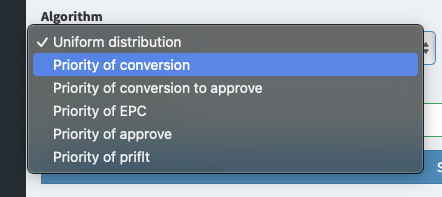
When A/B testing, variants are distributed evenly across users by default. You can turn on automatic optimization and show users whichever variant is performing best by conversion rate, EPC, or earnings. To do that, go to the split test settings and pick any option other than even distribution in the “Algorithm” field.
Domain parking
Domain parking happens in the “Flows – Domain parking” section. It shows the main IP address that parked domains need to be pointed at.
Adding a domain to storage
Go to your domain registrar and find “DNS Zone Management” or something similar. Delete all A, AAAA, and CNAME records. Add an A record named @ pointing to the IP address.
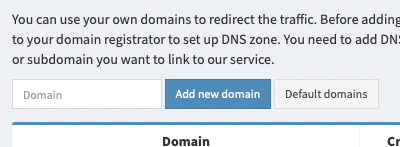
Add the domain in the “Flows – Domain parking” section. Click “Check”. Within a couple of hours, the domain will get an SSL certificate and be ready to go. Until it’s activated, you can check its status once every 15 minutes.
Selecting a domain in the split
Open your split test. Once you’ve added parked domains, a dropdown with your parked domains will show up next to the “Split link type” field. Just pick the domain you need and use the resulting split link to pour traffic.
Attaching a split to a domain
An interesting way to run things: open a split right on the domain’s homepage. To do that, you need to attach the split to the domain.
Option 1: go to the parked domains section, find the domain you need, click the “Attach” button, and pick the split test you want.
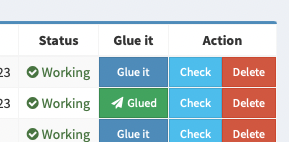
Option 2: in the “Splits” section, pick the domain for a specific split and click the “Attach domain” button.

Preparing the site storage
Before you get started, you need to set up the built-in site storage. There are three useful recommendations for it: turn off the showcase, switch on shortened pixel code, and set up a single Thank You page.
Disabling the showcase
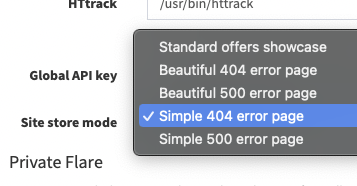
Go to “Management – Settings – Sites” and find the “Technical settings” block there. In the “Storage display mode” field, pick one of the error-page options. We recommend the plain 404 error.
Using shortened pixel code
The full pixel code with JS has access to the content of the page it opened on. In some cases, that can get you banned. You can disable JS in your pixels and insert their shortened, safe code instead.
Add these lines to the config.php file in the root of the site storage to disable JS:
define( 'NOJSFB', true );– for Facebookdefine( 'NOJSGA', true );– for Googledefine( 'NOJSMR', true );– for Yandex.Metricadefine( 'NOJSVK', true );– for VK.com
Preparing the Thank You page
We recommend creating a separate file for the Thank You page and placing it right in the root of the site storage. That way you’ll get identical behavior on the black and white sites. The file can be named anything – in our example, we’ll use thanks.php.
Create a file called thanks.php in the storage root with this content:
<?php
$cms = require_once $_SERVER['DOCUMENT_ROOT'] . '/init.php';
$cms->thanks();
In the storage’s config.php file, add this line:
define ( 'SHOPURL', '/thanks.php' );
Useful tips
These tips for advanced users can help you improve your cloaking workflow.
Dynamic white sites
Using the same white sites across different flows isn’t recommended. It’s better to introduce a bit of variety depending on the requesting domain.
White site addresses
We strongly recommend using the most neutral addresses possible for white sites. The best approach is to make them look like paths to static content on a CDN. For example, you could name your white site folders: static, assets, upload, uploads, content, wp-content – any sufficiently neutral option works.
The rest of the path shouldn’t look deliberate in any way. Some random string of characters works great. A perfect example is 32 hex characters that look just like an MD5 hash. Or it could be something like 0123s45, where 123 is the offer ID and 45 is the site ID.
Optimal paths for white sites:
static/9eff5b71df451024a1d8ef41ab50a5e5
assets/o243/s118
wp-content/themes/o314s1
Extract shared pages
Black and white sites use identical pages, like the privacy policy or terms of service. You can keep separate copies on each site, but it’s more convenient to factor them out the same way as the Thank You page.
Create a file called info.php in the root of the site storage with this content:
<?php
$cms = require_once $_SERVER['DOCUMENT_ROOT'] . '/init.php';
$cms->pages();
$cms->showpage( 'e404' );
Use links like these on your white and black sites:
- Privacy policy:
/info.php?page=privacy - Terms of service:
/info.php?page=terms
You can also set up your own pages in the cms/page folder and link to them by changing the page parameter in the request.
Shared cloaker
The method described above works for individual setups. But you can also build ready-made sets of black and white sites for all your affiliates. To do that, use the TDS mechanism instead of split tests – it’s configured in a similar way. The only difference: automatic optimization isn’t supported within a single offer, only between different offers.